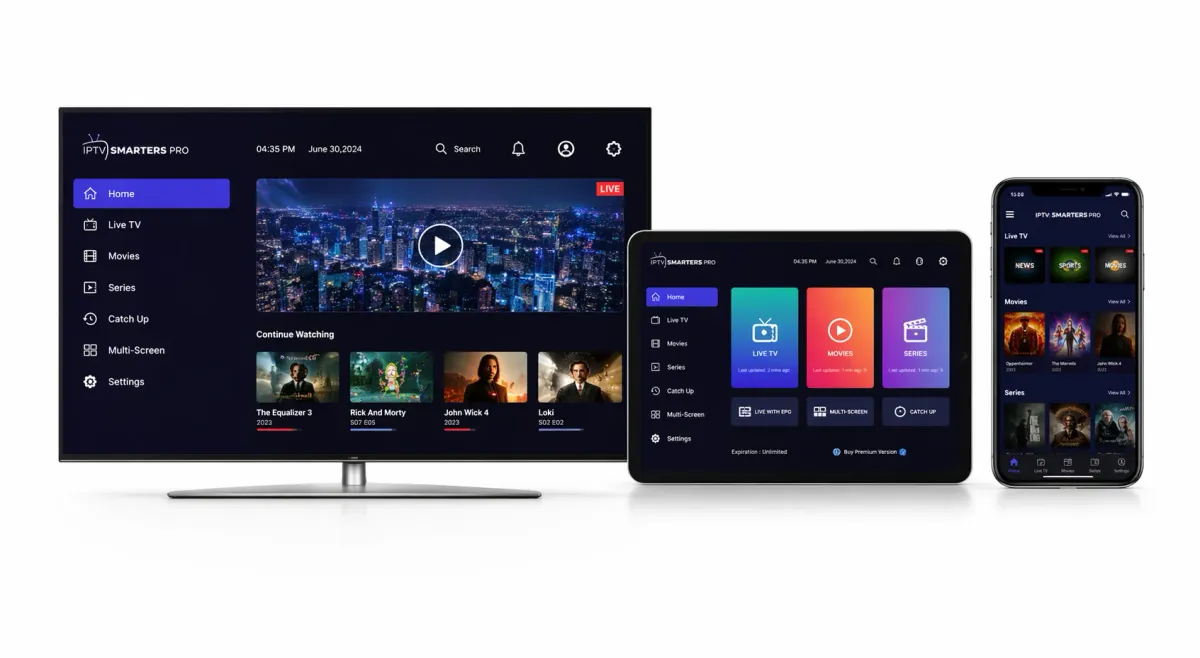
Have you just bought an IPTV subscription and want to install IPTV Smarters on your Samsung Smart TV? This guide shows you the full process step by step, from how to find the app to how to set up your channels.
The installation takes under 5 minutes and requires no technical experience. Whether your Samsung TV is a newer model from 2020 to 2026 or an older model, there is a solution that fits.
What you need to know before you start
Samsung Smart TVs run on Tizen OS, Samsung's own operating system. Unlike Android devices, you cannot install an APK file directly on your Samsung TV. Installation is done through Samsung App Store, Smart Hub, or alternative methods.
What you need
Before starting the installation, make sure you have:
If you do not yet have an IPTV subscription, you can explore our offers with instant activation.
- A Samsung Smart TV connected to the internet via Wi-Fi or Ethernet
- An active IPTV subscription with your login information, such as server URL, username and password
- Your Samsung remote control available
Check the compatibility of your Samsung TV
The IPTV Smarters app, also known as Smarters Player Lite, is compatible with Samsung Smart TVs from 2017 and newer, running Tizen 3.0 or newer.
To check your TV version, go to Settings → Support → About This TV.
Method 1: Installation through Samsung App Store, recommended
This is the easiest and safest method. The app is usually called “Smarters Player Lite” or “IPTV Smarters Pro” in Samsung App Store.
Step 1: Go to Smart Hub
Turn on your Samsung Smart TV and press the Home button or Smart Hub on the remote. You will reach the main screen with the app row at the bottom.
Step 2: Open App Store
Go to the Apps section in the menu. You can open it directly from the app row or through the main menu.
Step 3: Search for IPTV Smarters
Click the search icon at the top right of the screen. Use the remote to type “IPTV Smarters” or “Smarters Player Lite” in the search field.
The app should appear in the search results. If you cannot find it, try searching only for “Smarters”.
Step 4: Install the app
Select the app in the results and click Install. The download only takes a few seconds. When installation is complete, you can add the app to the home screen for easier access later.
Step 5: Start and configure
Open the app. On first launch, accept the terms of use. You are then ready to configure your subscription.
Method 2: Installation through USB stick, for compatible models
If the app is not available in Samsung App Store in your region, you can install it through a USB stick. This method works on Samsung TVs with Tizen OS.
Step 1: Prepare the USB stick
Format a USB stick to FAT32. On Windows, you can right-click the drive, choose Format and then FAT32.
Step 2: Download the app
On your computer, go to the official website of the app and download the widget file compatible with Tizen. Extract the ZIP file and copy all the content to the root of the USB stick.
Step 3: Install on your Samsung TV
Insert the USB stick into the USB port on your Samsung TV. The app appears automatically in the My Apps section. Start it from there.
Step 4: Continue to configuration
The app is now installed. Follow the setup steps described in the next section.
Method 3: Use an alternative app, Smart IPTV
If IPTV Smarters is not available for your Samsung model, you can use Smart IPTV, also called SIPTV, a popular alternative on Samsung TV.
Step 1: Install Smart IPTV
Search for “Smart IPTV” in Samsung App Store and install the app. It may be free during a trial period and then require a one-time activation.
Step 2: Note your MAC address
Open the app on the TV. A MAC code appears on the screen. Note it carefully or take a photo of it.
Step 3: Send your playlist
On your phone or computer, go to the Smart IPTV upload page, enter the MAC address and the M3U URL from your IPTV provider, and submit the playlist.
Step 4: Restart the app
Return to your Samsung TV and restart the Smart IPTV app. Your channels should now appear.
Configuring your IPTV login information
Whichever installation method you choose, you need to configure your IPTV login information to access the channels. Here is how to do it with IPTV Smarters Pro.
Connection via Xtream Codes API, recommended method
This is the easiest and most common method. It works with most IPTV providers.
Your channels are now available, organised into categories such as Live TV, Movies, Series and Sport.
- Open IPTV Smarters Pro on your Samsung TV
- Choose “Login with Xtream Codes API”
- Fill in the fields: Any Name, Username, Password and URL
- Click “Add User”
- Wait a few seconds while the channels load
- Any Name: give the list a name, for example “Living Room TV” or “My IPTV”
- Username: the username you received
- Password: the password you received
- URL: the server address in the format http://domain.com:port
Connection via M3U URL
If your provider gave you an M3U link instead of Xtream Codes details:
The channels load after a few moments.
- Open IPTV Smarters Pro
- Choose “Load Your Playlist or File/URL”
- Choose M3U URL
- Enter a name for the playlist
- Paste the full M3U URL
- Click “Add User”
Optimise your IPTV experience on Samsung TV
Once installation is complete, these tips can help you get the best possible streaming quality.
Prefer Ethernet connection
Wi-Fi works, but for smooth streaming in HD and 4K, a wired Ethernet connection is often the best choice. It gives a more stable connection and reduces buffering, especially during busy periods.
Check your internet speed
Recommended minimum speed is 10 Mbps for HD and 25 Mbps for 4K. You can test the speed in the network settings on your Samsung TV or through an online speed test.
Enable the TV guide, EPG
In the IPTV Smarters settings, you can activate EPG, Electronic Program Guide. This lets you see what is currently playing and what comes next on each channel.
Organise your favourites
IPTV Smarters lets you mark channels as favourites. Create your own list for quick access without scrolling through the full catalog every time.
Solving common problems
The app is not available in Samsung App Store
Several possible solutions:
- Update the TV software: Settings → Support → Software Update
- Change the Smart Hub region and test another region if needed
- Use the USB method described in method 2
- Use an external device, such as Fire TV Stick or Android Box, for more flexibility
Connection error / “Unable to connect”
In most cases, this error is caused by a typo in the login information:
- Check that there are no extra spaces before or after the server URL
- Make sure the username and password are correct
- Check that the URL includes the correct port number
- Contact your IPTV provider to confirm the details
Buffering or frozen picture
Buffering is usually related to your internet connection, not the app itself:
- Switch to Ethernet if you use Wi-Fi
- Restart your router
- Reduce streaming quality from 4K to HD in the settings
- Close other apps or devices using a lot of internet
- If the problem continues, contact your provider for further checking
EPG does not load
The TV guide depends on your IPTV provider. If EPG does not appear:
- Go to the EPG settings and run a manual update
- Check that your provider supports EPG
- Restart the app
FAQ: Frequently asked questions
Is IPTV Smarters Pro free on Samsung TV?
Yes, the basic version of IPTV Smarters, often called Smarters Player Lite, is usually free in Samsung App Store. The app itself is free to install, but you need an active IPTV subscription to access the channels.
Which Samsung models are compatible?
Most Samsung Smart TVs from 2017 and newer with Tizen 3.0 or newer are compatible. For older models, an external device such as Fire TV Stick or Android Box is often recommended.
What is the difference between IPTV Smarters Pro and Smarters Player Lite?
In practice, this is almost the same app. Smarters Player Lite is often the name used in some app stores, while IPTV Smarters Pro is the more general name. The functions are mostly the same.
Can I use IPTV Smarters on several Samsung TVs?
It depends on your IPTV subscription. You can install the app on several TVs, but the number of simultaneous connections is controlled by the plan you have chosen.
Is the app available in English?
Yes, IPTV Smarters Pro offers an interface in several languages, including English. You can change the language in the settings after installation.
Does IPTV work without a satellite dish?
Yes. IPTV works through your internet connection. You do not need a satellite dish, coaxial cable or extra decoder as long as your Samsung TV is connected to the internet.
Conclusion
Installing IPTV Smarters on Samsung Smart TV is a simple process that only takes a few minutes. The fastest method is direct installation through Samsung App Store, but alternative methods such as USB or Smart IPTV can also work well when needed.
Once the app is configured, you can access a wide range of channels, movies and series in HD and 4K directly on the big screen.
Ready to get started? Explore our IPTV subscriptions with instant activation and customer support.